Posts

Showing posts with the label Tricks

How To Add Something To The Right Click Send To Menu
Image
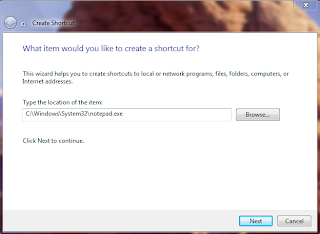
Normally, whenever you right click on any file or folder in Microsoft Windows, in the pop up menu there is a SEND TO option that allows you to send the selected file or folder to some other application, folder or device. For Example, it may be possible to send a file to WinZip, to some Bluetooth Device or someplace else.   Simply Click on The Start Menu and type in the search box shell:sendto and press Enter Let us assume that you want to add Notepad to the Send To Menu. In that case, all you need to do is create a new Shortcut in the folder that you opened early. Here's The Screen Shot Now, whenever you right click on any file or folder, you will see Notepad as one of the Send To destination options. You Can Also Try This on Hard Disk Drives for Direct Copying Of Material From CD/DVD/USB DRIVE etc. As Simple as that!
Create Your Own Customised Run Commands

Image
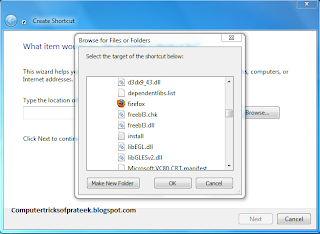
The Run Command on Microsoft Windows operating system allows you to directly open an application or document with just a single command instead of navigating to it’s location and double-clicking the executable icon. However, it only works for some of the inbuilt Windows programs such as Command prompt (cmd), Calculator (calc) etc. So, have you ever wondered how to create your own customized Run commands for accessing your favorite programs, files and folders? Well, read on to find out the answer. Creating the Customized Run command Let me take up an example of how to create a customized run command for opening the Mozilla Firefox. Once you create this command you will be able to open firefox just typing "ff" or whatever (without quotes) in the Run dialog box. Now Steps to do.             Right click on your Desktop and select New -> Shortcut.             You will see a “Crea...

Google Gravity Fall Down Trick

Image
There are lot of people online who play with the Google Homepage everyday in one or the other way., One like that can be found on MRDoob’s page which is given below. The MR Doob team have designed a webpage in which Google Homepage falls down from the top as soon as you move cursor inside the page. You can also click on the fell down Google homepage to move them to top, to make them oscillate and play with it. This works best on Google Chrome, But you can also try this on Firefox with limited options. It is really cool to see the Internet Giant Google to fall down To get this Gravity webpage, Follow the following instructions : Open Google.com Go to Search settings option. Turn off Instant search. Now visit Google.com again and enter Google Gravity in the search box. Now press I am Lucky button And Then Type anything in the search Box then, press Enter key. Your Results will fall down...

Command Prompt Tricks

There are lot of command prompt tricks and tips which many of us don't know about.Command prompt can be very useful if you know how to use.Just go to cmd and check the following cool commands 1. systeminfo With this command, you can retrieve the following information: Host Name OS Name OS Version OS Manufacturer OS Configuration OS Build Type Registered Owner etc 2. driverquery Get Installed Driver Information 3. ipconfig /all information about your network connection and IP address 4. subst W: C:\windows Map A Drive Letter to a Folder 5. tasklist List All Tasks Running On The Computer 6.taskkill /im programnames.exe /f to Kill A Program There are many other also will update soon

How to Disable XP Vista Shutdown

You can play this prank on your friend computer disable his shutdown option.Its very easy you have to use registry trick and tips. You can use a Registry hack to disable the normal Shut Down. Run the Registry Editor and go to HKEY_CURRENT_USER\Software\Microsoft\Windows\CurrentVersion\Policies\Explorer Create a new DWORD value named NoClose with a data value of 1. Exit the Registry and reboot in order for the change to take effect. You won't be able to shut down Windows in the normal manner from now on; you'll have to run Task Manager by pressing Ctrl-Alt-Delete or right-clicking on the Toolbar, choosing Task Manager, and then using the Task Manager's Shut Down menu to close Windows. If you want to reenable normal shutdowns, delete the NoClose value.

Make Your Computer Speak

It's a super cool vbs tricks to make your computer speak what ever you want  you should try this one out its a simple trick just Copy and paste the code given below in an notepad and save it as   NAME.vbs Dim ProSpeak Set ProSpeak = WScript.CreateObject( "SAPI.SpVoice" ) ProSpeak.Speak "Welcome to Computer Tricks of Prateek" Replace Welcome to Computer Tricks of Prateek to what ever you want Open the .vbs file and it will start speaking If this post was helpful do post a comment =)