Posts

How To Access Wikipedia in Offline Mode Wikipedia Access Without Internet Connection - Pocket Wikipedia

T oday i am sharing an Great Software With you . which permits you to  access wikipedia in without internet connection . this software knows as pocket wikipedia. Pocket wikipedia is small application tool which helps you to access wikipedia in offline mode or without internet connection . this application works on Windows,Linux Operation System And Widows Based Mobiles. T o Download Click Here For Download Wikipedia Application
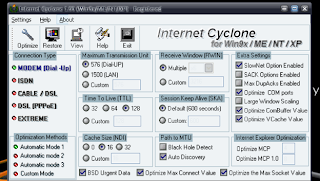
Optimizing Internet Connection Using Internet Cyclone - Increase Internet Speed in Windows

Image
Internet Cyclone  Is a powerful Internet tool for Windows 7,  9x, NT, 2000, 2003 and XP created to modify your Windows registry settings in order to speed up internet connection Speed up to 200% Internet Cyclone Main Features:     Speed up internet to 200% in just a few seconds.     It's compatible with all modems and high-speed LAN, ISDN, CABLE, DSL, T1 or other internet connections .     It will speed up video streaming like Youtube, Metacafe, Google, etc.     It will speed up web surfing, online gaming, e-mailing, etc                                                     Click Here For Download Internet Cyclone 

Free calling within the US and Canada through 2013

Many of you call phones from Gmail to easily connect with friends and family. If you're in the US and Canada, you'll continue to be able to make free domestic calls through 2013. Plus, in most countries , you can still call the rest of the world from Gmail at insanely low rates.

Top Ten Tips To Improve System Speed

1.Let your PC boot up completely before opening any applications. 2.Refresh the desktop after closing any application. This will remove any unused files from the RAM. 3.Do not set very large file size i mages as your wallpaper. Do not keep a wallpaper at all if your PC is low on RAM (less than 64 MB). 4.Do not clutter your Desktop with a lot of shortcuts. Each shortcut on the desktop uses up to 500 bytes of RAM 5.Empty the recycle bin regularly. The files are not really deleted from your hard drive until you empty the recycle bin. 6.Delete the temporary internet files regularly. 7.Defrag your hard drive once every two months. This will free up a lot of space on your hard drive and rearrange the files so that your applications run faster. 8.Always make two partitions in your hard drive. Install all large Softwares (like PSP, Photoshop, 3DS Max etc) in the second partition. Windows uses all the available empty space in C drive as virtual memory when your Computer RAM is...

Use Facebook More Easily

This post just to make yourself easy with handling your social life. Here I will be telling you various shortcuts for Facebook in Google Chrome & Mozilla Firefox browser. Chrome Firefox Facebook Alt+m Shift+Alt+m New Message Alt+0 Shift+Alt+0 Help Center Alt+1 Shift+Alt+1 Home Page Alt+2 Shift+Alt+2 Profile Page Alt+3 Shift+Alt+3 Manage Friend List Alt+4 Shift+Alt+4 Message List Alt+5 Shift+Alt+5 Notification Page Alt+6 Shift+Alt+6 Account Settings Alt+7 Shift+Alt+7 Privacy Settings Alt+8 Shift+Alt+8 Facebook Fan Page Alt+9 Shift+Alt+9 Facebook Terms Alt+? Shift+Alt+? Search Box Enjoy and Have Fun!!!

Create A Hidden User Account

This tweak allows an account that is normally displayed on the Welcome screen to be hidden from view. To log on using the account it's necessary to use the Log On To Windows dialog box similar to the one in Windows 2000. #[Start] [Run] [Regedit]#Registry Key: HKEY_LOCAL_MACHINE\SOFTWARE\Microsoft\WindowsNT\CurrentVersion\Winlogon\SpecialAccounts\UserList#Modify/Create the Value Data Type(s) and Value Name(s) as detailed below.#Data Type: REG_DWORD [Dword Value] // Value Name: Type Name of Account to be Hidden#Setting for Value Data: [0 = Account is Hidden / 1 = Enabled]#Exit Registry and Reboot... While the account is hidden on the Welcome screen, note that the account profile will be visible in C:\Documents and Settings or wherever user profiles are stored as well as in Local Users and Groups

How to find the IP address of the sender in Yahoo! mail

When you receive an email, you receive more than just the message. The email comes with headers that carry important information that can tell where the email was sent from and possibly who sent it. For that, you would need to find the IP address of the sender. The tutorial below can help you find the IP address of the sender. Note that this will not work if the sender uses anonymous proxy servers. Finding IP address in Yahoo! Mail 1. Log into your Yahoo! mail with your username and password. 2. Click on Inbox or whichever folder you have stored your mail. 3. Open the mail. 4. If you do not see the headers above the mail message, your headers are not displayed. To display the headers, * Click on Options on the top-right corner * In the Mail Options page, click on General Preferences * Scroll down to Messages where you have the Headers option * Make sure that Show all headers on incoming messages is selected * Click on the Save button * Go back to the mails...