Posts

Create A Hidden User Account

This tweak allows an account that is normally displayed on the Welcome screen to be hidden from view. To log on using the account it's necessary to use the Log On To Windows dialog box similar to the one in Windows 2000. #[Start] [Run] [Regedit]#Registry Key: HKEY_LOCAL_MACHINE\SOFTWARE\Microsoft\WindowsNT\CurrentVersion\Winlogon\SpecialAccounts\UserList#Modify/Create the Value Data Type(s) and Value Name(s) as detailed below.#Data Type: REG_DWORD [Dword Value] // Value Name: Type Name of Account to be Hidden#Setting for Value Data: [0 = Account is Hidden / 1 = Enabled]#Exit Registry and Reboot... While the account is hidden on the Welcome screen, note that the account profile will be visible in C:\Documents and Settings or wherever user profiles are stored as well as in Local Users and Groups
How to find the IP address of the sender in Yahoo! mail

When you receive an email, you receive more than just the message. The email comes with headers that carry important information that can tell where the email was sent from and possibly who sent it. For that, you would need to find the IP address of the sender. The tutorial below can help you find the IP address of the sender. Note that this will not work if the sender uses anonymous proxy servers. Finding IP address in Yahoo! Mail 1. Log into your Yahoo! mail with your username and password. 2. Click on Inbox or whichever folder you have stored your mail. 3. Open the mail. 4. If you do not see the headers above the mail message, your headers are not displayed. To display the headers, * Click on Options on the top-right corner * In the Mail Options page, click on General Preferences * Scroll down to Messages where you have the Headers option * Make sure that Show all headers on incoming messages is selected * Click on the Save button * Go back to the mails...

Remove Thumb.db file

Thumb.db is is a cache of the current picture in that directory.to remove it go for following step1 > open "WINDOWS EXPLORER". 2>go to "TOOLS". 3>open "FOLDER OPTIONS". 4>go to "VIEW". 5>see 1st section "FILES & FOLDERS". 6>click on the "DO NOT CACHE THUMBNAILS". now the thumbnail file will be removed from ur computer once u do this the file will be never created.

Tips to recover scratched CD's

1. Spread a cloth on a flat surface and place the CD on it. 2. Then, hold the disc with one hand, use the other to wipe the polish into the affected area with a soft cloth. 3. Wait for it to dry and buff using short, brisk strokes along the scratch, not across it. 4. A cloth sold to wipe spectacles or camera lenses will work super m8's. 5. When you can no longersee the scratch,, wash the disc with water and let it dry before playing. Intersting isnt it? Try it right now I have used toothpaste with good effects before Ive also used car paint cutting compound on deeper scratches. It does leave lots of smaller scratches (as it is a cutting compound after all) but it will remove the worst scratches in most cases. ya u r gng to b surely befinited by this Operation

Simplest Tips to Increase Battery Life of Android Phones

Hello Readers.You might be frustrated about your Android's Battery Life.Today i will tell you some simple Tips you might Know. Turn Off Wireless Network Positioning. (Used for Google Location Data). Go to Settings-> Location-> Unmark 'Use Wireless Networks'. Don't Use live Wallpapers. they are the one of the most Battery Drainers.  Many Widgets take data from Internet. That Drains too much battery. The Weather App is one of the most Battery Drainer. Remove it from your Homescreen.   Go to Menu -> All Programs -> Weather. And Tap your Menu Button and Go to Settings and Disable 'Update Automatically'. Some Apps Like Gmail, Facebook syncs every 15 Minutes. So, It's better to set them one by one to 1 or 2 hours. If you Doesn't need Auto sync. Disable it by going to Settings -> Accounts and Sync -> Unmark Auto Sync. Mobile Data is Always On by Default. If you browse internet on your Android for Limited Time. So you should D...

Complete List of Run Commands

Run commands are really useful as it can open your services on the go by just inserting some key-words, well finding them manually from the control panel is a big headache, so i'm giving you some of the useful commands for the RUN Panel which will surely boost your work creativity. A Accessibility Controls - access.cpl Accessibility Wizard - accwiz Add Hardware Wizard - hdwwiz.cpl Add/Remove Programs - appwiz.cpl Administrative Tools - control admintools Adobe Acrobat (if installed)- acrobat Adobe Designer (if installed)- acrodist Adobe Distiller (if installed)- acrodist Adobe ImageReady (if installed)- imageready Adobe Photoshop (if installed) - photoshop Automatic Updates - wuaucpl.cpl B Bluetooth Transfer Wizard – fsquirt C Calculator - calc Certificate Manager - certmgr.msc Character Map - charmap Check Disk Utility - chkdsk Clipboard Viewer - clipbrd Command Prompt - cmd Component Services - dcomcnfg Computer Management - compmgmt.msc Control Panel – control ...

Decrease Firefox Startup Time

Image
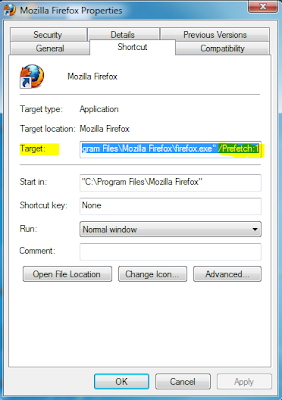
Firefox is one of the best browser in the world due to its large Plug-in base But it Starts Very Slow after Startup of Windows. Today i'm going to tell you a trick to decrease Firefox Startup Time. First, Right Click on Firefox Shortcut and Look on Target below the screenshot     By default you will see that the Target link is  "C:\Program Files\Mozilla Firefox\firefox.exe" You Have to only add "/Prefetch:1" (WITHOUT QUOTES) and Remember to give [SPACE] after .exe" as i Highlighted in Screenshot above and press "OK" Now, You will see a big improvement in Firefox Startup Speed. Pls Post Comments if you have any Problem..!!